1. San Onefre Nuclear Power Plant - Resize
- This photo was shot at 685 x 536
- Image size is 80k.
- Click on the Editor tab.
- Click
on Resize image and reduce the image proportionally: by selecting 400
as the new width the height will automatically change to 313
- Save and Share - what is new image size now?
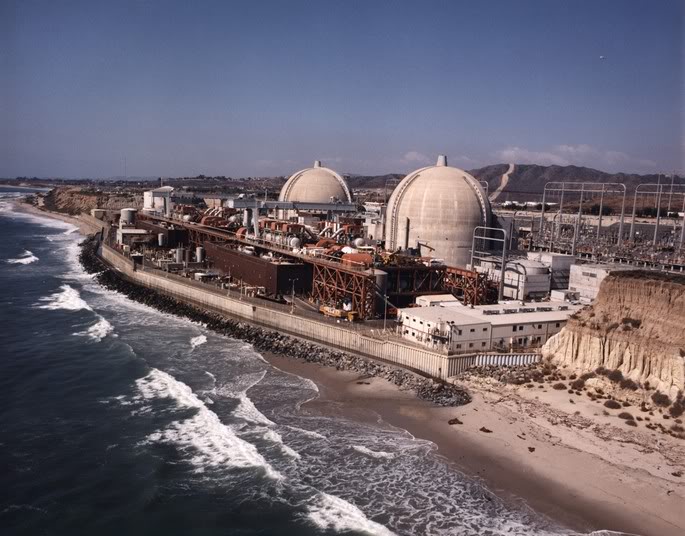
Source - San Onofre Nuclear Power Plant. N.d. U. S. NRC, San Clemente, CA. San Onofre Nuclear Generating Station, Unit 2 . Web. 28 July 2011.
2. Change Nuclear Sunflowers to.... Create > Effects with Text
- Click on Create tab
- Click on Effects
- Click on Neon Glow
- Change color to a blue hue
- Now, select the Text tab
- Write your text(Nuclear Winter)and select the Add button
- Select font and size with Text Properties box
- Save and download to your computer

Source - 360 Cities, Dukovany, Czech Republic. Sunflowers near nuclear power plant Dukovany. Web. 28 July 2011.
3. Crop and Frame
- Go to Editor Tab
- Select Crop - and use crop tool to highlight Steven Chu, U.S. Secretary of Energy - this will actually crop out President Obama when you select Ok
- Now Select Frames and pick Add Frames
- Adjust the width on the outer frame to make it wider. You can also play with the colors of the inner and outer frame
- Press Apply
- Now select Text, and Write Steven Chu, Secretary of Energy
- Pick a font and resize to fit in the frame - Use top circle in text frame to rotate text
- Go to Save and Share
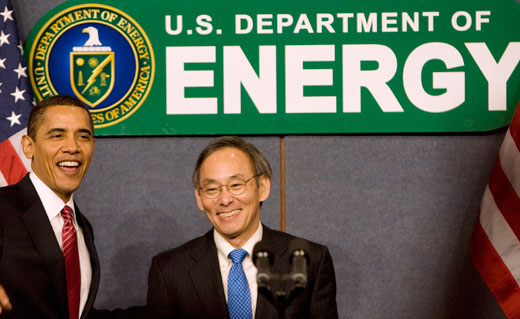
Source - Downing, Larry. Steven Chu and President Obama. N.d. Reuters, Washington DC. Steven Chu, “Green” Superhero. Web. 28 July 2011.
4. Grasslands - Text Properties - Advanced Blend Modes-Overlay
- Go to Text Tab
- Click on 'Add New Text' - Write "Grasslands"
- Pick - Philosopher' Font
- The Text Properties box will appear - Pick Blending Mode - Overlay
- Now move the text box down into the grass and you will see that it will blend in with the grass!
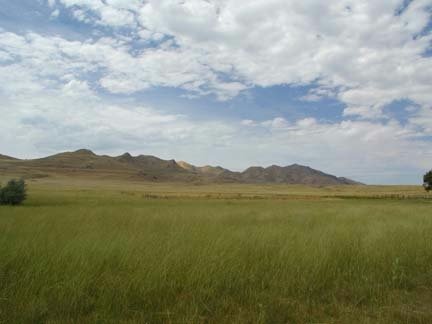
Source - Hagemann, Judy. Pics4learning search - "grasslands". N.d. Pics4Learning, Antelope Island, Utah. Details for: antelopeislandhillsprairie.jpg. Web. 28 July 2011.

Collaborative Learning Spaces in 21st Century Learning Environments | Copyright © 2012. All rights reserved.